Building a terminal workflow
I spend more time than I probably should building a workflow that feels right for me. Part of it is because I believe it makes me more productive, but I won’t hide that it’s also partly because I enjoy the process itself. Since I spent a lot of time in the terminal, that’s where most of my tinkering ends up happening.
Inspired by this blog post by Evan Hahn that recently1 made the rounds, I wanted to share some tools and scripts that I use in my day-to-day workflow.
I will try to give credit where I can, but I have stolen taken inspiration from countless dotfiles repositories, and I haven’t always been very diligent in sharing where I got things from. To be fair, I’m fairly certain some of my copypastes were from people that had copypasted it from somewhere else — that’s just how it goes I suppose.
zsh and prompt
The first thing you get when opening a terminal window is the prompt, so let’s start there. Beyond all the visual niceties, I find powerlevel10k to be an amazing option thanks in no small part to its instant prompt . The other way to get an instant prompt, of course, is to have a basic prompt that doesn’t do anything, but that’s much less fun.
Powerlevel10k is a theme for zsh, and that’s the shell I have been using for years. I like all the juice you can get out of it without having to learn something entirely new like fish. However, when I started using it, I remember being very annoyed at how it handled some characters. Specifically, characters like ^. zsh handles them differently than bash, which allows for some powerful globbing expressions, but at the same time some basic commands (git reset HEAD^) won’t work, so you need to remember to quote or escape them. You could also disable extended globbing entirely. But there’s another way:
alias git='noglob git'
alias rake='noglob rake'
Just like that, git and rake will take the arguments as given, and zsh won’t try to pre-process them beforehand.
There are some zsh wizards out there that can do way more, though:
fancyctrlz() {
  if [[ $#BUFFER -eq 0 ]]; then
    BUFFER="fg"
    zle accept-line
  else
    zle push-input
    zle clear-screen
  fi
}
zle -N fancyctrlz
bindkey '^Z' fancyctrlz
This one deserves attribution: I nicked it from robbyki’s dotfiles . It admittedly took me a while to understand. Let’s unpack it,
The way ctrl+z normally works is relatively simple. If there is a foreground job running, it stops it. You can then resume it in the foreground (fg) or the background (bg). This is a pretty common workflow for Vim users (before Neovim turned into a full-fledged IDE). You would do your coding in Vim, ctrl+z to put it in the background and then run tests, write commits… And then bring the editor back via fg.
This simple function extends ctrl+z. The if condition checks whether “BUFFER” is empty. That is, whether there is anything written in the prompt. Let’s start with the first case. When it is empty, it “writes” fg to the buffer and then sends it (accept-line). This alone makes ctrl+z work to switch back and forth with a stopped job. So you can use ctrl+z to stop vim and then hit it again to bring it back. Neat.
But what about the other half? We can see it calls two ZLE functions: push-input and clear-screen. The second one is —I hope— self-explanatory. For the first we can look at the docs:
Push the entire current multiline construct onto the buffer stack and return to the top-level (PS1) prompt. If the current parser construct is only a single line, this is exactly like push-line. Next time the editor starts up or is popped with get-line, the construct will be popped off the top of the buffer stack and loaded into the editing buffer.
Or, in simpler terms, it “stores” your current buffer for later and gives you a fresh prompt. I find this surprisingly useful. It happens weirdly often that I realise, midway through writing a command, that I need to run something else first. The options are plentiful, and they all tend to suck:
- Go to the beginning of the line, add the second command with
&&separating them. - Run the first command, quickly cancel it with ctrl+c, then run the second command, maybe with
&& !!or just running the first command normally after. - Copy the first command without running it, cancel the prompt, run the second command, then paste the first one and run it.
Awful stuff. Now? I just do ctrl+z, run the second command, and the first one is back on my prompt ready to go right after.
new old tools
The last few years have seen a flurry of tools that aim to replace some staples2. I have tried a few and usually ended up liking them. ripgrep , bat , fd and eza , for example, feel better than their predecessors (grep, cat, find, ls).
I don’t have any specific tips for them other than “give them a shot”, but I did want to share this:
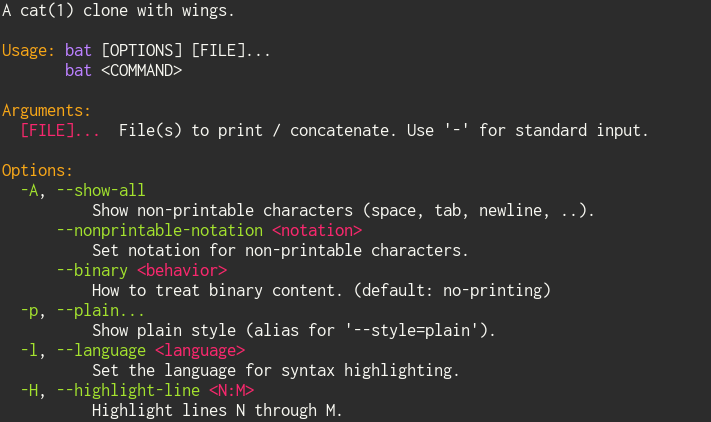
alias -g -- -h='-h 2>&1 | bat --language=help --style=plain'
alias -g -- --help='--help 2>&1 | bat --language=help --style=plain'
That sets up a global alias
that will turn something like mycommand -h into:
mycommand -h 2>&1 | bat --language=help --style=plain
So basically it pipes the command out to bat with a specific syntax highlighting. Pretty neat. The only downside is the few commands that have -h be something other than help, but thankfully those aren’t too common.
new new tools
mise
Mise’s aim is to replace three sorts of tools: a version manager (like asdf), a task runner (make/just) and an environment variable manager (like direnv).
I use it for all three. On the tooling department, it’s particularly useful to manage Ruby versions with it since they’ve started offering precompiled Rubies. It has also been a godsend for installing things for a Fedora laptop I got at work. I am used to pacman’s amazing repositories (plus the AUR) and Fedora’s doesn’t compare. For some things I’d rather do mise use --global github:atanunq/viu than add yet another COPR repository.
I also use it as a sane task runner for when Make doesn’t make sense. I enjoy the syntax more than I do just’s .. The tasks run in parallel, and the interactive picker is a nice touch. I use the environment variables part less, although it is still occasionally incredibly useful.
For my personal projects I take a more front-and-center approach and use it for most things (including setting up a postinstall hook so when you mise install it automatically does eg uv sync) but at work not everybody is on board—yet!—, so I added mise.local.toml to my global gitignore and keep my configurations there.
I even wrote a Mise prompt segment for powerlevel10k .
fzf
fzf’s wonders have been told high and wide already, so I’ll just share a couple of particular ways I’ve used it recently to great effect.
For a while I had to switch quite often between AWS profiles. Adding --profile to every command was not an option I entertained and exporting AWS_PROFILE manually was equally painful, so the solution was this simple picker:
awsp() {
	[[ ! -f ~/.aws/config ]] && echo "No aws config file found" && return 1

	# Use fzf for profile selection, aws CLI is VERY slow so just grep the config
	selected_profile=$(rg profile ~/.aws/config | awk '{print substr($2, 1, length($2)-1)}' | fzf --query ${1:-""} -1 --prompt="AWS Profile: ")

	if [ "$selected_profile" ]; then
		export AWS_PROFILE="$selected_profile"
	else
		echo "Unsetting profile"
		unset AWS_PROFILE
	fi
}
Note --query ${1:-""}, which means you can run it with a starting filter, like awsp prod.
Another one I use quite often is for pulling up notes. I just have a ton of markdown files in a certain folder, and this lets me pull up a picker and quickly find the one I need so it gets opened on my editor. Similarly, it can be executed with an initial query like notes migration with the added nicety that, if only one result is found, the picker is skipped.
notes() {
	notes_dir=~/notes
	fd . $notes_dir | fzf  --preview 'bat --style=numbers --color=always {}' --multi --delimiter '/' --with-nth -1 --print0 --query ${1:-""} | xargs subl
}
While I’m at it, I also recommend the zsh plugin fzf-tab which integrates fzf directly into the shell’s completion menu.
zoxide
Also a fairly popular tool, it allows for quick jumping between directories. I actually stick to a few ten or so most of the time, as I almost never cd past a project root, but I appreciate being able to switch quicker, so that’s how I end up using it.
For that, these two are my main tools:
export _ZO_FZF_OPTS="$FZF_DEFAULT_OPTS \
 --keep-right --info=inline \
 --preview-window=down,30% --preview 'eza -1 --icons=always --color=always {2..}'\
"

function execute_zoxide() {
  __zoxide_zi
  zle accept-line
}
zle -N execute_zoxide
bindkey '^j' execute_zoxide


# fuzzy search zoxide from its own db, with full paths (unlike zi) and go to best option
function zz() {
	local result
	result=$(zoxide query -l --exclude "$(__zoxide_pwd)" | fzf -1 --reverse --inline-info --query "${@:-}" --preview 'eza -1 --icons=always --color=always {}')
	if [[ -n "$result" ]]; then
		z "$result"
	fi
}
The execute_zoxide, bound to Ctrl+J, pulls up the zoxide database in a fzf picker, letting me quickly fuzzy search for something and navigate there. The second works in a rather similar way. Assume you usually switch between these projects:
├── company_backend
├── company_frontend
└── backend_client
Then I can easily navigate them using fuzzy terms: zz coback, zz baccli
old tools
I have a semi-working neovim configuration but I hardly use it. My editor of choice is still Sublime Text. It works fast and I have it customised exactly how I want it. This is a relatively recent development. I had tried VSCode early on and found it worse, but after a few years everyone around me had switched to it. Somewhat puzzled and worried I might be missing out I gave it another try. I still found it felt wrong but I noticed I had been missing out on a lot of things just because I had never bothered configuring them in Sublime. Mostly LSPs. So I did that, and now it all works as I want. I just wanted to give it a shout out.
other scripts
I find that writing loops in a prompt is annoying, and crafting a script every time you need one is even worse. So I just have these two aliases that have come in handy multiple times:
untilok() { until $@; do :; done }
untilfail() { while $@; do :; done }
And, finally, there is every . To some extent it’s a generalisation of both of the above.
Since I also find myself needing to run something periodically, I asked ChatGPT to put that together, edited a couple of things and put it on my $PATH. The usage couldn’t be simpler:
every 30 s "echo 'Hello World'"                  # Run indefinitely
every 2 min "ls -la"                             # Run indefinitely
every 5 s "ping -c 2 google.com" --until-ok      # Stop when ping succeeds
every 5 s "pgrep myprocess" --until-fail         # Stop when process dies
Inspired by Evan’s post, I also defined a ping alias that plays a notification-like sound, so I can do something like (real example from my terminal history trying to reproduce a flaky test)
every 0 s "bundle exec rspec spec/path/to/spec.rb" --until-fail && ping
It actually took me about a week until I tried to ping a website and my computer made a sound. After a moment of confusion, I realised what had happened. It’s called ding now, btw.